





How to Use Uconnect in Your CDJR Vehicle

How to Use Uconnect in Your CDJR Vehicle
One of the benefits of owning a CDJR (Chrysler, Dodge, Jeep, Ram) car is its built-in advanced infotainment and connectivity system. It has a simple yet intuitive interface that helps drivers get information without distraction. Today we’re going to take a look at the system and how to use Uconnect to make it easier, safer, and more fun for you to drive.
What Is Uconnect?
An Overview of the Uconnect System
Uconnect is an infotainment and connectivity system equipped in CDJR vehicles. It includes everything from navigation, media, and sound to a remote control app and safety features. This exclusive infotainment system prioritizes ease of use rather than complex menus.
Which Vehicles Have Uconnect?
You can find Uconnect as a standard feature on the modern CDJR cars: Chrysler, Dodge, Jeep, and Ram. You may not find the Uconnect system on older or classic CDJR vehicles (typically models before 2018).
Why Drivers Like Uconnect
Many infotainment systems cause drivers to become distracted from driving. Uconnect is designed to be easy to use, minimize distractions, and provide access to useful information that helps drivers drive more efficiently and enjoyably.
Using Uconnect Navigation
Entering a Destination
The first important Uconnect guide is to use its navigation features to help you reach your destination via the best route. There are two options to enter your destination: a touchscreen or a voice command. The easier and recommended method, especially if you’re driving, is the voice command. Simply press the Voice Recognition button on the steering wheel and say your destination. For instance, “navigate to 123 Main Street, Pittsburgh,” or “nearest coffee shop.”
Real-Time Navigation Features
Uconnect also offers very helpful features, such as real-time navigation that helps drivers find the best route by using live data to avoid traffic and delays. The system constantly monitors live traffic conditions and reroutes drivers to alternative routes. It also offers other features, such as lane guidance, speed limit warnings, and predictive search, which suggests options based on your driving habits and points of interest.
Entertainment Features Available Through Uconnect
AM/FM and SiriusXM® Radio
If you’re an old-school kind of person who still likes to listen to the radio, no worries. Uconnect automatically connects to digital HD radio, providing crystal-clear sounds to accompany your journey. SiriusXM® is also available on the Uconnect 5, offering more than 10,000 hours of on-demand content and sports broadcasts.

Streaming Music
Prefer to put your own jams? That too is no problem with Uconnect. Use the wireless smartphone mirroring feature to stream music directly from your phone. Spotify, YouTube, Apple Music, you name it.
USB and Other Media Options
Beyond wireless streaming, CDJR vehicles keep you fully connected with a versatile center-console media hub. You’ll find a convenient mix of traditional USB-A and ultra-fast USB-C ports in both the front and back rows, making it easy to charge your devices quickly or play data back directly.
Vehicle Information and Convenience Features
Monitoring Vehicle Information
Beyond music and maps, Uconnect lets drivers access vital information all in the dashboard. You can easily monitor your car’s health in real-time. It shows you the tire condition, fluid levels, oil life, and other statistics.
Climate Control Integration
Uconnect also lets you control climate inside the cabin seamlessly. With a quick touch or voice command, you can adjust temperatures, change fan speeds, activate heated or ventilated seats, and turn on the heated steering wheel.
Driver Convenience Features
Finally, Uconnect adds driver-convenience features designed to reduce stress out of daily trips. This includes customizing and saving driver profiles for your exact seating and mirror preferences, configuring advanced safety alerts, and using the built-in universal garage door opener.
Connecting Your Smartphone to Uconnect
Apple CarPlay®
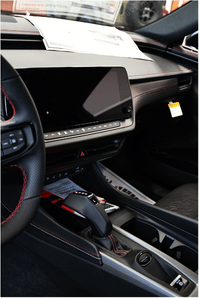
You can also find Apple Carplay® on Uconnect, providing instant access to Apple’s apps, including Maps, Messages, Siri, and Apple Music. How to use Uconnect with your iPhone is easy. First, make sure your phone’s Bluetooth and WiFi are on. Next, on the Uconnect screen, tap Phone, then Add Device, and select your iPhone. Once a pop-up appears, tap Pair and Use CarPlay.
Bluetooth® Pairing
If drivers prefer to use the standard Uconnect interface rather than mirroring, a traditional Bluetooth pairing is also available. How to use Uconnect with Bluetooth pairing can be done by opening the settings menu on your smartphone and ensuring Bluetooth is turned on. On your Uconnect screen, tap the Phone icon and select Add Device.
Lastly, check your smartphone’s Bluetooth discovery list, tap the option labeled Uconnect, and confirm that the 6-digit PIN displayed on your phone matches the one on your car’s touchscreen.
Tips for Getting the Most Out of Uconnect
Keep the System Updated
One of the most important tips on how to use Uconnect is to make sure that the system is always updated. This ensures that all the features that are on Uconnect can continue to work as they should. When there’s an update available, it’ll show on your touchscreen asking to install. Remember that avoiding updates can cause errors and system failure over time.
Explore All Available Menus
The best way to get used to all the features is to explore all the menus available. Before you drive the car, test out all the available features so that when you are ready to go, all the settings and benefits of Uconnect can fit your preferences and needs. Understanding how it works will allow you to use it properly and enjoyably.
Learn the Voice Commands
Voice commands are the best and safest way to utilize Uconnect. You can control your vehicle hands-free while keeping your eyes on the road. Use voice commands for everything from navigation and climate control to entertainment and communications. Use prompts such as “Navigate” and “Find” (for destinations), “Call” and “Text” (for communications), “Set” and Turn on/off” for climate), and “Play” and “Turn/Switch” (for entertainment).
If you have any further questions about how to use Uconnect in your CDJR vehicle, please call us. Our team can assist you in getting your vehicle ready to drive and reaching your destinations safely and soundly.